Keyboard Accessibility in 2026: The WCAG Failures Your Scanner Never Reports

Table of Contents
TL;DR — Quick Hits
- Automated accessibility scanners detect only 25-40% of WCAG failures. Keyboard problems sit almost entirely in the undetected majority.
- 95.9% of the top one million home pages had detectable WCAG failures in February 2026 — and that number counts only what a scanner can see.
- Keyboard operability (WCAG 2.1.1) is a Level A requirement, the lowest bar in the standard. Most sites still fail it.
- The whole test takes 15 minutes: put the mouse away, press Tab through the page, and confirm you can see and reach everything.
- Custom JavaScript widgets built from generic div elements are the single most common cause of keyboard failure on small business sites.
In February 2026, WebAIM ran its annual scan of the top one million home pages and found detectable WCAG 2 failures on 95.9% of them, averaging 56.1 errors per page — a 10.1% increase over the prior year. Page complexity was the driver: the average home page carried 1,437 elements, up 22.5% in twelve months.
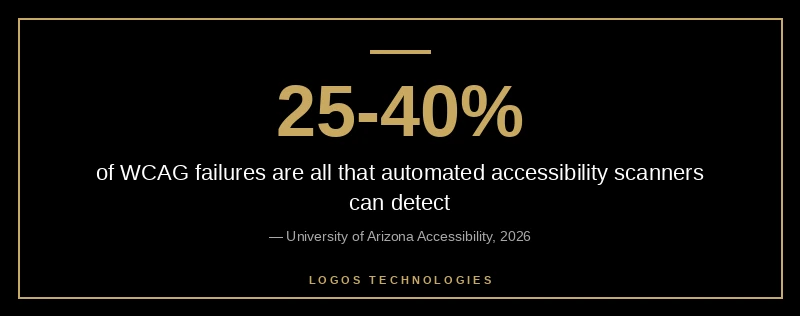
That 95.9% number is bad enough. What makes it worse is what it leaves out. WebAIM's scan, like every automated tool, reports only what software can evaluate programmatically. Research compiled by the University of Arizona's accessibility team puts automated coverage at 25-40% of WCAG failures, with automated scanning covering roughly 30% of success criteria and manual testing covering another 50%. Keyboard accessibility falls almost entirely into that manual half. If your only accessibility signal is a green score from a browser extension, you have no information at all about whether your site works for someone who cannot use a mouse.
Why automated scanners miss keyboard failures
Automated tools test the DOM. Keyboard operability is a property of behavior over time — the sequence in which focus moves, whether it can escape a container, whether the user can see where it landed. A scanner can confirm that a button has an accessible name. It cannot press Tab twelve times and notice that focus jumped from the header straight into the footer, skipping the entire navigation.
Google's own guidance is direct about this. The manual accessibility testing module on web.dev states that automated tools cannot catch every issue and that keyboard testing is the first manual check you should run. Chrome's Lighthouse audit for keyboard-focusable interactive controls carries the same caveat — it flags obvious cases and explicitly tells you to verify the rest by hand.
This is also the gap that accessibility overlay widgets fail to close. An overlay injected at runtime cannot repair a tab order that the underlying markup got wrong, which is why overlays keep showing up as defendants in litigation rather than as a defense. Federal web accessibility lawsuits reached 3,117 filings in 2025, a 27% jump over 2024's 2,452, and keyboard operability is a routine allegation in those complaints. A full website accessibility audit has to include manual keyboard testing for exactly this reason — the automated pass is the beginning of the work, not the end of it.
What does WCAG actually require for keyboard accessibility?
WCAG requires that every function of your site be operable through a keyboard interface, that users can always move focus away from any component, and that the focused element is visibly indicated. Those are three separate success criteria, and two of them are Level A — the minimum conformance level in the entire standard.
- 2.1.1 Keyboard (Level A) — all functionality must be operable through a keyboard interface without requiring specific timings for individual keystrokes.
- 2.1.2 No Keyboard Trap (Level A) — if focus can move into a component, it must be able to move out again using only the keyboard.
- 2.4.7 Focus Visible (Level AA) — the keyboard focus indicator must be visible at every focus stop.
WCAG 2.2 added a fourth that catches a very modern failure mode. 2.4.11 Focus Not Obscured (Minimum), Level AA, requires that a focused component is not entirely hidden by author-created content — the sticky header, the cookie banner, the chat bubble anchored to the bottom-right corner. Every one of those is standard issue on a 2026 small business site, and every one of them can bury the focus ring. If you have not walked the newer criteria yet, our WCAG 2.2 compliance checklist covers what changed and what it means in practice.
The five keyboard failures we find on almost every small business site
The same handful of problems account for the overwhelming majority of keyboard failures, and they cluster around custom JavaScript components rather than ordinary content.
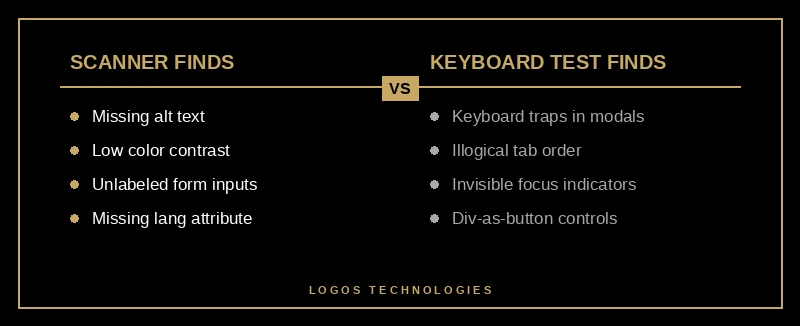
1. A div used as a button. A clickable div is not focusable, not announced as a control, and does not respond to Enter or Space. WebAIM's keyboard accessibility guidance is unambiguous that native button and anchor elements handle all of this for free.
2. outline: none with no replacement. Someone removed the default focus ring because it looked untidy and never added a substitute. This is a straight 2.4.7 failure and it is the most common one we see.
3. Modals that trap focus — or don't hold it at all. Either Tab escapes the open dialog into the page behind it, or Escape does nothing and the user is stuck. Both fail.
4. Mega-menus that are hover-only. If the submenu opens on :hover and nothing else, keyboard users never reach a single item inside it.
5. Tab order that fights the layout. Positive tabindex values and CSS-reordered flex containers desynchronize the visual order from the focus order. Google's guidance on controlling focus with tabindex is blunt: never use a tabindex value greater than zero.
How do you test keyboard accessibility step by step?
You test keyboard accessibility by putting the mouse away and navigating the page with Tab, Shift+Tab, Enter, Space, arrow keys, and Escape. It takes about fifteen minutes per template and requires no tooling beyond the browser you already have open.

1. Put the mouse away
Physically move it out of reach. The instinct to grab the mouse the moment something doesn't respond is precisely the failure you are hunting for, and you will rationalize it away if the mouse is sitting there.
2. Tab through the entire page
Click an empty area at the top, then press Tab repeatedly to the end. Focus should visit every link, button, field, and control in the same order they appear visually. Note anywhere the order jumps.
3. Watch the focus indicator at every stop
You must be able to see what is focused, every time. Google's keyboard focus guidance recommends :focus-visible so the indicator appears for keyboard users without showing on mouse click, and warns against replacing outline with box-shadow because box-shadow disappears in Windows High Contrast Mode. Aim for at least a 3:1 contrast ratio between the focused and unfocused states.
4. Open and close every widget
Trigger each modal, accordion, dropdown, carousel, and mega-menu with Enter or Space. Operate it with arrow keys. Leave it with Escape. As MDN's keyboard accessibility reference explains, if an element can be focused with the keyboard it must also be interactive with the keyboard — browsers give you none of that automatically once you build a control out of generic elements.
5. Test the forms and the skip link
Complete an actual submission using only the keyboard, including custom selects and date pickers, and confirm error messages are reachable. Then reload and press Tab once: a skip-to-content link should appear. Forms are where keyboard problems become revenue problems, which is why accessible form design deserves its own pass.
Why hand-coded static sites pass this test by default
Most keyboard failures are introduced by JavaScript that reimplements a control the browser already provides. A site built from semantic HTML — real buttons, real links, real label associations — inherits focusability, keyboard activation, and screen reader semantics without a line of custom code. There is no widget to trap focus in, because there is no widget.
That is not a philosophical position, it is arithmetic. WebAIM's 2026 finding that the average home page grew to 1,437 elements is the story: the more third-party sliders, popup builders, and drag-and-drop components a page accumulates, the more surfaces exist for focus to break on. The same bloat drives the JavaScript execution time problems that wreck Core Web Vitals — accessibility and performance fail together because they share a root cause.
There is a search angle here too. Search Engine Land's John McAlpin published ten SEO use cases for auditing your accessibility tree in August 2026, making the point that the accessibility tree — the same structure assistive technology traverses — is what AI search systems use to understand page structure and relationships. A div masquerading as a button is invisible to a screen reader and semantically meaningless to an AI crawler for identical reasons. Fixing the markup improves both at once, and it lowers the ADA lawsuit exposure that has been climbing for three straight years.
Frequently Asked Questions
Is keyboard accessibility legally required?
In practice, yes. WCAG 2.1 Level AA is the benchmark referenced in the overwhelming majority of US digital accessibility complaints, and keyboard operability is a Level A criterion inside it. Federal filings hit 3,117 in 2025, up 27% year over year, and keyboard failures are among the most frequently cited defects.
Can I just run axe or WAVE and call it done?
No. Those tools are useful and worth running, but they cover roughly 30% of WCAG success criteria. Keyboard order, focus visibility, keyboard traps, and widget key bindings all require a human pressing keys. Treat the automated scan as step one of a longer process, not the finish line.
What is a keyboard trap?
A keyboard trap is any component that focus can enter but not leave using the keyboard alone. Modals without an Escape handler and embedded third-party players are the usual culprits. It is a WCAG 2.1.2 Level A failure and it makes the rest of the page unreachable for the affected user.
Does keyboard navigation affect SEO?
Indirectly but meaningfully. The semantic markup that makes a site keyboard-operable is the same markup that populates the accessibility tree, which search engines and AI crawlers use to interpret page structure. Native elements, correct heading order, and labeled controls help both audiences at once.
How often should I retest?
Retest every unique page template after any change to navigation, forms, or interactive components — and at minimum once per quarter. Keyboard regressions are almost always introduced by a new plugin, embed, or third-party script rather than by content edits. Fold the keyboard pass into the same cadence as your broader website accessibility audit so the manual and automated checks stay in sync.
Keyboard accessibility is the cheapest accessibility win available to a small business: no license, no vendor, no overlay subscription, just fifteen minutes and a Tab key. It is also the one that automated tooling will never hand you. At LOGOS Technologies in Papillion, Nebraska, we build hand-coded static sites where semantic HTML does this work by default, and we run the manual keyboard pass on every template before launch. If your site has never been tested without a mouse, take a look at our web design services or contact us and we will walk your site's templates with you.